
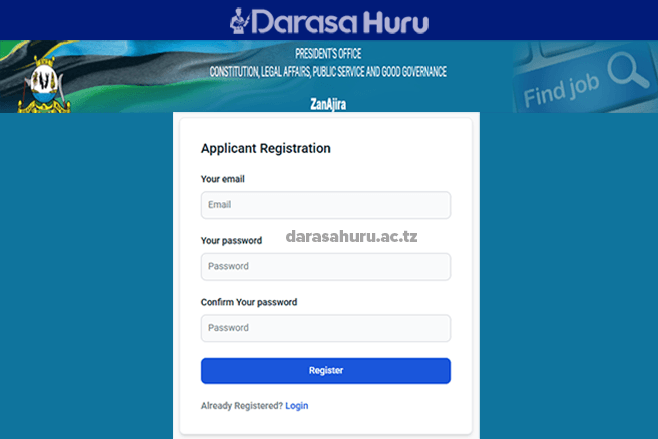

ZanAjira Portal Register, Login And Apply Job Zanzibar
ZanAjira Portal Jinsi ya Kujisajili na Kuomba Kazi Zanzibar, ZanAjira Portal Register, Login And Apply Job Zanzibar
ZanAjira Overview
ZanAjira system is a web based application system that designed to simplify the job application process for job seekers as well as improving and increasing transparency in the recruitment process for Civil Servants in Zanzibar.
ZanAjira Requirements
The ZanAjira Portal can be accessed using a computer system with the following minimum specifications:
- A sustainable network connection.
- Web browser
1. How to Register
1. Visit official Zanajira Website: https://portal.zanajira.go.tz/
2. Click on Register button on ZanAjira portal home page
3. Enter your email address and password (which will be used as a username and password respectively during log in to the system).
4. Click the ‘Register’ button to continue with the registration process.
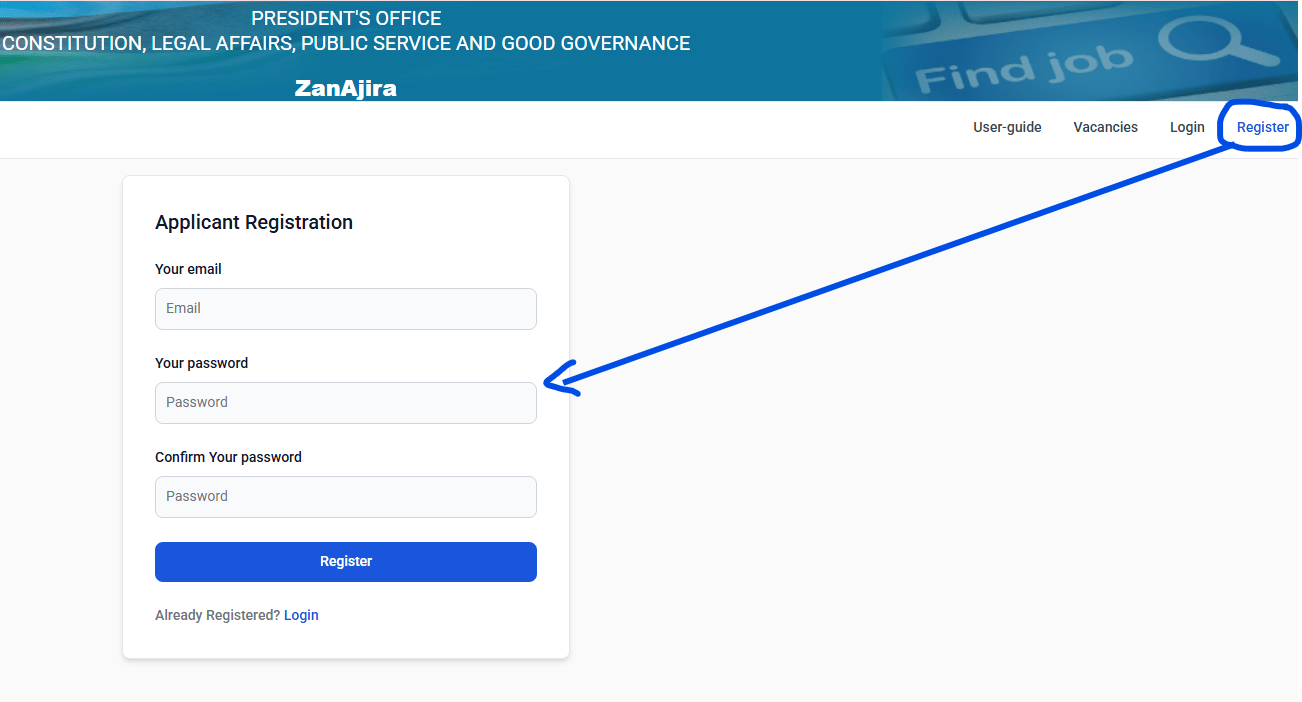
Important things to note:
1. Confirm the password to make sure it entered correctly. The password must contain minimum eight characters that contains alphabet, symbol and numbers
2. Upon successful creation of an account, you will receive a confirmation email through the email address you have provided with a link to activate your account. Make sure you open your inbox, spam or junk to see this email.
3. Most of the communication between Civil Service Commission and Applicants will be via email.
2. Please ensure you register with a secure and individual email address which you regularly check. You will only need to register once and make applications across multiple available vacancies in the portal.
3. Please ensure that you keep your password safe and secure.
2. How to Login
1. Visit official Zanajira Website: https://portal.zanajira.go.tz/
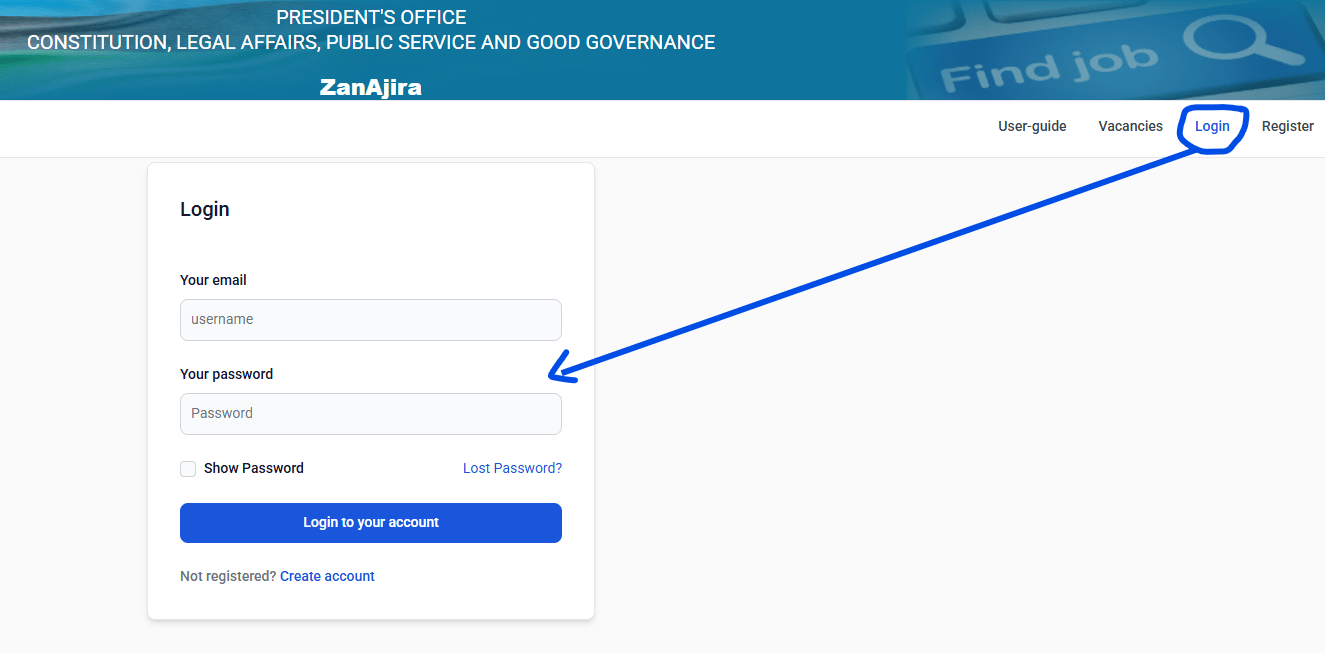
2. Click on Login button on ZanAjira portal home page
3. Enter your email address and password entered during registration
4. Click the ‘Log in’ button to continue with the registration process.
3. Dashboard:
After login you will be taken to the applicant Dashboard. The top menu will contain the links to
access the:-
- Vacancies – Displays the list of all vacancies and vacancies closed date.
- My application – This shows applicant’s job applications history and status.
- Change password – Allows the user to change their password.
- Log Out – user quits from the system.
4. Applicant Profile
The applicant’s information will be filled in the following tabs: Personal details, Contact Details, Academic Qualification, Professional Qualification, Language Proficiency, Working Experience, Training & Workshop Attended, Computer Literacy, Referees, Other Attachments and Declaration.
i. Personal Details
Once the correct Zanzibar Identification Number is fielded, the applicant’s information will automatically filled. You will then be required to update your profile by filling in the form below and click save to upload your information into the system.
ii. Contact details
You will be required to fill in relevant contact information including your telephone number, postal address, current address and attach your birth certificate, etc. Click save to upload your information into the system.
iii. Academic Qualification
This tab is used to save your academic certificates that you have scanned in PDF format. These academic qualifications include the following levels; ordinary level, Advanced level, certificate, full technician certificate, diploma, advanced diploma, degree, postgraduate diploma, masters and phd. Applicant must register all level of education.
Fill in all the required information by following these steps:
- Select education level.
- Select the country of study.
- Select institution name
- Select the appropriate program name and program category will display.
- Choose start and end year of study and fill GPA points
- Attach your certificate. Ensure that the certificate you attach is not more than 2MB.
- Click save to upload the changes into the system.
- You are required to enter each certificate individually.
- While entering information about CSE and ACSE, ensure that you enter the correct index number.
- Those who have studied outside Tanzania are required to have certificate verification letter or certificate from NECTA (for secondary education), NACTE (for diploma and certificates) and TCU (for university education).
Lost certificates (ACSEE or CSEE)
Candidates with lost certificate are required to indicate that their certificates have been lost and fill in the required information. Once this information is filled, the system will be able to fill in other relevant information for them.
Click on the ‘click here if you have lost your certificate’ button as shown above
Make sure that you enter your examination index number and year of completion correctly then submit.
iv. Professional qualifications
In this tab, applicants with professional qualifications such as CPA, ERB, CCNA, CISA, CISM, Medical Practicing licenses, Driving license (for drivers), Advocate Practicing Licenses, etc. will be required to fill in the information associated to the said qualifications including its name, the name of the institution that issued it and attach scanned copy of the certificate in pdf format.
v. Language Proficiency
The applicant is required to fill in the languages that they know and indicate the different level of proficiency for each language. Select the language you want to fill in then click at level of competency for speaking, reading and writing. Click ‘save’ button to upload changes to the system.
vi. Working Experience
Here the applicant will fill in the different experiences they have in the working. The name of the position, the name of the organization and duration must be clearly indicated. Fill in all the necessary information.
vii. Training and workshops
Applicants that have attended training, workshops and/or seminars will fill in information related to them. Fill in all the necessary information and attach your certificate then click ‘save’ button to upload changes to the system.
viii. Computer Literacy
In this tab, the applicant will need to indicate their computer literacy in particular in the areas of Ms Word, Ms Excel and Ms PowerPoint.
You can attach certificate of training to support your Computer Literacy (this is optional). Then
click ‘Add’ to update changes.
ix. Referees
The applicant needs to identify and fill out information about referees. Fill in all the necessary information
Note: make sure that all information entered is correct so that the referee can be reached
x. Other attachments
The applicant will need to attach other documents that are relevant to the job application but have not been accommodated in other tabs in this tab. This includes the birth certificate, CV and recommendation letters. Select the type of document you want to attach and then upload the relevant attachment.
xi. Declaration
Applicant must declare that all the information is correct and truthful. By clicking this, you have agreed that the information is correct. Entering incorrect or/and false information is grounds for disqualification at any stage of the recruitment process.
xii. CV preview
In this tab applicants can preview and print CV by clicking Print button.
5. How to apply for jobs
As soon as you have completed your profile to at least 70%, you will now be able to apply for any job vacancies that are open at the time.
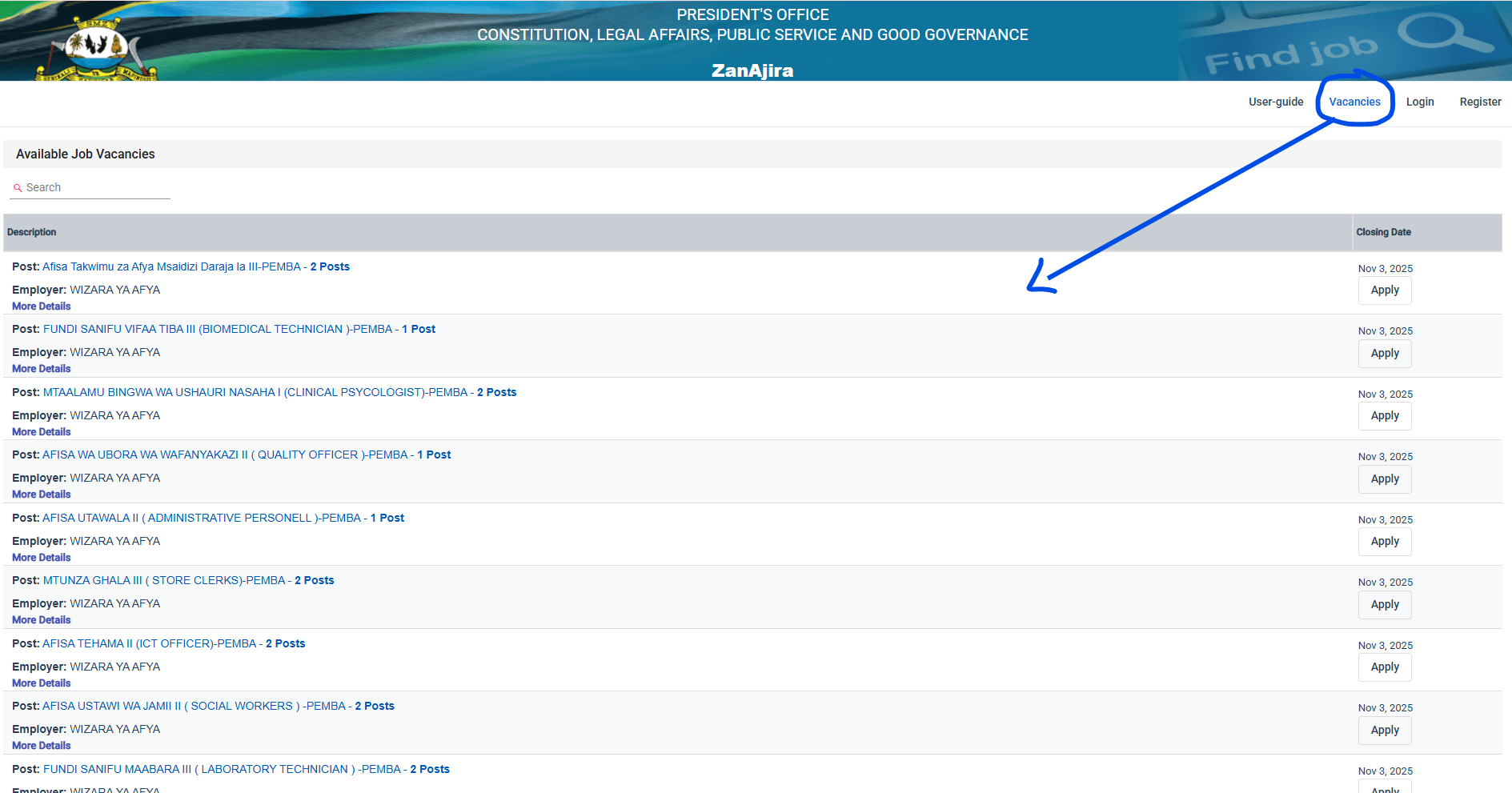
1. Click on the ‘Vacancies’ button in the main menu.
2. You can then search for a specific vacancy using any combination of the search keyword or Category filters. Note: if you are not logged in, you will be required to login first then
apply for chosen post.
3. On more details tab you will find all the details concerning a particular post, these details include, Qualifications, Duties and Responsibilities, Salary Scale and all other relevant
information.
4. Click on the ‘apply’ button.
5. Read the information displayed and if you agree with said information, attach a signed application letter and click ‘confirm’ button to finalize your application process.
Note:
Make sure that your attachment letter are signed.
Then click ‘confirm Application’ to complete the application process
6. How to Change password
Applicant can change password by click on the ‘CHANGE PASSWORD’ button on the top right of your screen. Fill in the old password and the new password twice. Click ‘submit’ button to save changes.
7. My applications
Through the ‘My Applications’ you will be able to see all the job applications you have completed. You will be able to see the status of all your application from start of the process to finish.
CLICK HERE TO REGISTER AND APPLY