TOPIC 4 COMPUTER SOFTWARE
CONCEPT OF COMPUTER SOFTWARE
Computer software refers to a collection of programs, procedures, and instructions that direct a computer on how to perform specific tasks. Software controls the operation of computer hardware and enables users to utilize the computer system effectively.
Software is not physical and cannot be touched. It exists in electronic form and is stored in storage devices such as hard disks or solid state drives. When a computer is switched on, software is loaded into memory to control system operations.
A computer system cannot function without software because hardware alone cannot process data or produce meaningful output.
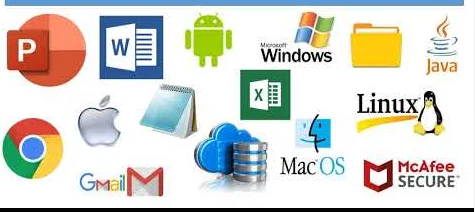
Examples of computer software include operating systems, word processing programs, spreadsheets, database systems, and antivirus programs.
PRACTICAL ACTIVITY
Students should identify different software programs installed on their computer and classify them as system software or application software.
SCENARIO QUESTIONS
Explain why software is necessary for computer hardware to work ii. State two differences between computer hardware and computer software
SYSTEM SOFTWARE
System software is a type of software that controls and manages the overall operation of a computer system. It coordinates hardware components and provides an environment for application software to run.
System software starts automatically when the computer is powered on. It manages memory, files, input and output devices, and system security.
Without system software, application software cannot operate and the computer system cannot function.
TYPES OF SYSTEM SOFTWARE
I. OPERATING SYSTEM
An operating system is the most important system software in a computer system. It acts as an interface between the user and the computer hardware. It allows users to interact with the computer and controls all system resources.
Functions of an operating system include memory management, file management, device management, process management, and security control.
Examples of operating systems include Microsoft Windows, Linux, macOS, Android, and iOS.
II. DEVICE DRIVERS
Device drivers are system programs that enable communication between the operating system and hardware devices. Each hardware component requires a specific driver to function correctly.
Without the correct device driver, hardware devices such as printers, scanners, and sound cards cannot operate properly.
Examples include printer drivers, keyboard drivers, mouse drivers, and display drivers.
CATEGORIES OF OPERATING SYSTEMS
Operating systems are categorized based on the way they process data, manage users, and control computer resources. Each category is designed to meet specific computing needs.
1. Single user operating system
A single user operating system allows only one user to access and use the computer at a time. It is commonly used on personal computers for individual tasks such as typing, browsing, and learning.
This type of operating system manages resources for one user and does not support multiple simultaneous users.
EXAMPLES: Microsoft Windows, macOS, MS-DOS
PRACTICAL ACTIVITY
Students should identify the operating system installed on their personal computer and confirm whether it supports single user operation.
SCENARIO QUESTIONS
Why is a single user operating system suitable for home computers ii. Give two activities best supported by a single user operating system
2. Multi user operating system
A multi user operating system allows many users to access the same computer system at the same time. Each user is given separate resources and security permissions. It is commonly used in servers, schools, and organizations where many users share one system. EXAMPLES: Linux, UNIX, Windows Server
PRACTICAL ACTIVITY
Students should discuss how computers in a school server room allow multiple users to access resources.
SCENARIO QUESTIONS
- Why is a multi user operating system important in organizations
- What challenges may arise if many users share one system
3. Multitasking Operating System
A multitasking operating system allows a computer to run more than one program at the same time. It enables users to switch between applications without closing them. This improves efficiency and productivity.
EXAMPLES: Microsoft Windows, Linux, macOS
PRACTICAL ACTIVITY
Students should open a word processor, music player, and browser at the same time and observe system behavior.
SCENARIO QUESTIONS
- How does multitasking improve user productivity
- What happens when too many programs run at once
MANAGING FILES AND FOLDERS
Managing files and folders is the process of creating, organizing, storing, retrieving, and maintaining data in a computer system. Proper management helps users work efficiently, save time, and protect important information from loss.
1. FILE
A file is a collection of related data or information stored on a storage device and identified by a unique name. Files may contain text, images, audio, video, or program instructions. Each file has a filename and an extension that shows the type of file,
Examples
Notes.docx for word documents,
Results.xlsx for spreadsheets,
Photo.jpg for images,
Music.mp3 for audio files.
Practical Activity
Identify five files stored on a computer and write their filenames together with their extensions.
Scenario Activity
Explain why file extensions are important and describe problems that may occur when files are not properly named.
2. FOLDER
A folder is a container used to store and organize files and other folders in a computer system. Folders help group related files together and make them easier to locate and manage.
Examples include a folder named assignments containing school work, a pictures folder storing images, and a music folder containing audio files.
PRACTICAL ACTIVITY
Create folders for different school subjects and store related files in each folder.
SCENARIO ACTIVITY
Discuss problems that may occur if files are stored without using folders.
3. CREATING FILES AND FOLDERS
Creating files and folders involves setting up new storage locations to save information. Files are created using application software such as word processors, while folders are created using the operating system. For example, creating a new document in Microsoft Word or creating a folder named computer_studies.
PRACTICAL ACTIVITY
Create one folder and save at least three files inside it.
SCENARIO ACTIVITY
State four steps to create folder and explain why files should always be created and saved in the correct folder.
4. RENAMING FILES AND FOLDERS
Renaming is the process of changing the name of a file or folder to make it more meaningful and easy to identify. Clear names help users locate files quickly, for example changing file1.docx to term1_results.docx or renaming new folder to form_one_notes.
PRACTICAL ACTIVITY
Rename files using clear and descriptive names.
SCENARIO ACTIVITY
Explain the disadvantages of using unclear file names.
5. COPYING FILES AND FOLDERS
Copying is the process of duplicating files or folders from one location to another while keeping the original. It is mainly used for backup and sharing purposes, for example copying notes to a flash disk or copying images to another folder.
Practical Activity
Copy files from one folder to another and confirm that both copies exist.
Scenario Activity
Explain why copying files is important for data safety.
6. MOVING FILES AND FOLDERS
Moving is the process of transferring files or folders from one location to another without keeping the original in the previous location. It helps reorganize data, for example moving photos from downloads to pictures or moving documents into subject folders.
Practical Activity
Move files into appropriate folders.
Scenario Activity
Explain what may happen if files are moved incorrectly.
7. DELETING FILES AND FOLDERS
Deleting is the process of removing unwanted files or folders from storage. Deleted items are usually sent to the recycle bin before permanent removal. Deleting helps free storage space, for example removing duplicate files or outdated documents.
Practical Activity
Delete unnecessary files and restore one file from the recycle bin.
Scenario Activity
Explain why files should be checked carefully before deleting.
8. SEARCHING FOR FILES AND FOLDERS
Searching is the process of locating files or folders stored on a computer using names, extensions, or dates. Searching saves time when files are not easily visible, for example searching by filename or file type.
Practical Activity
Search for a file using its name or extension.
Scenario Activity
Discuss difficulties faced when files are poorly organized.
IMPORTANCE OF MANAGING FILES AND FOLDERS
Proper file and folder management improves efficiency, saves storage space, protects data, simplifies backup and recovery, and increases user productivity.
III. UTILITY SOFTWARE
Utility software is system software designed to maintain, manage, protect, and optimize the computer system. It helps improve system performance and security. Utility programs perform tasks such as virus detection, disk cleanup, file backup, and system maintenance.
Examples include antivirus software, disk defragmenters, backup tools, and file compression programs.
PRACTICAL ACTIVITY
Students should open the control panel or system settings and identify the operating system and at least two utility programs installed on the computer.
SCENARIO QUESTIONS
- What problems may occur if a computer has no operating system
- Why are device drivers important when installing new hardware
APPLICATION SOFTWARE
Application software refers to programs designed to help users perform specific tasks. These tasks may be related to education, business, communication, entertainment, or data management.
Application software depends on system software to run. It cannot function independently without an operating system.
Application software is designed according to user needs and can be general or specific in nature.
TYPES OF APPLICATION SOFTWARE
1. GENERAL PURPOSE APPLICATION SOFTWARE
General purpose application software is designed to perform common tasks that are required by many users. These programs are widely used in schools, offices, and homes.
Examples include word processors for typing documents, spreadsheets for calculations, presentation software for slides, and web browsers for internet access.
2. SPECIAL PURPOSE APPLICATION SOFTWARE
Special purpose application software is designed to perform a specific task for a particular organization or function. It is developed to meet specific operational needs.
Examples include payroll systems, school management systems, hospital management systems, and airline reservation systems.
3. CUSTOMIZED APPLICATION SOFTWARE
Customized application software is developed according to the specific requirements of a user or organization. It is tailor-made to solve particular problems.
Examples include customized accounting systems and organization-specific databases.
PRACTICAL ACTIVITY
Students should open a word processing application, type a short paragraph, save the file, close the program, and reopen the saved document.
SCENARIO QUESTIONS
- Why is application software important to computer users
- Give reasons why an organization may choose customized software instead of general purpose software
SOFTWARE INSTALLATION
Software installation is the process of transferring software programs from a storage medium into a computer system so that they can be used. Installation prepares the software to work properly with the computer hardware and operating system.
Software can be installed from CDs, DVDs, flash disks, external storage devices, or downloaded from the internet.
Proper installation ensures correct functioning, security, and compatibility of software.
STEPS IN SOFTWARE INSTALLATION
- Checking system requirements to ensure compatibility
- Preparing the computer system
- Inserting installation media or opening the setup file
- Running the installation program
- Accepting license agreements
- Selecting installation location
- Completing installation and restarting the computer if required
IMPORTANCE OF SOFTWARE INSTALLATION
Software installation allows programs to be used effectively, ensures system stability, and prevents errors during operation.
PRACTICAL ACTIVITY
Students should install a simple application such as a media player or PDF reader under teacher supervision.
SCENARIO QUESTIONS
- What may happen if incompatible software is installed on a computer
- Why should users follow installation instructions carefully.