TOPIC 2 COMPUTER SYSTEMS
CONCEPT OF A COMPUTER SYSTEM
A computer system is an integrated set of components that work together to receive data (input), process it into information (output), and store results for later use. It includes hardware (physical parts), software (programs and instructions), data (raw facts), and users (people who operate and benefit from the system). A complete system transforms data into useful information for decision‑making and task execution.
Example:
At a hospital, a computer system receives patient data (input), processes it through medical record software, and produces a patient history report (output) for doctors.
COMPONENTS OF COMPUTER SYSTEM
A computer system consists of four interrelated parts working together to achieve specific goals
1. Hardware (Physical Components)
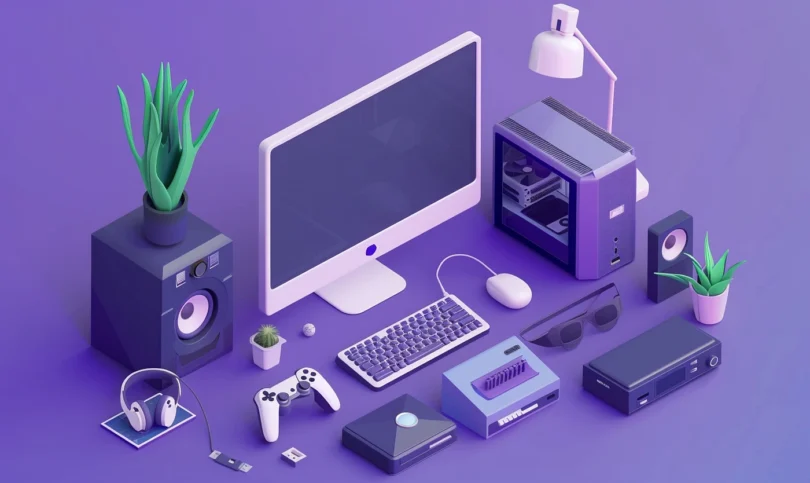
Hardware refers to the tangible parts of a computer you can see and touch. It includes input, processing, output, and storage devices.
I. Input Devices
Devices that allow data and instructions to enter the system. Examples are:
i. Keyboard : Types text and numeric data (letters, numbers)
ii. Mouse : Selects and moves objects on the screen
iii. Scanner : Converts printed documents into digital form
iv. Microphone : Captures audio for recording or communication
v. Webcam : Captures live video images
KEYBOARD AS AN INPUT DEVICE
A keyboard is an input device used to enter data, instructions, letters, numbers, and symbols into a computer system. It enables communication between the user and the computer by pressing keys, where each key sends a signal that the computer understands and processes.
The keyboard is the most commonly used input device. It is mainly used for typing text, entering numerical values, and giving commands to the computer.
TYPES OF KEYS ON A KEYBOARD
A. ALPHANUMERIC KEYS
Alphanumeric keys are used to type letters, numbers, and symbols. They include letters from A to Z, numbers from 0 to 9, and punctuation marks. These keys are mainly used for typing text and data entry.
Example: Writing letters, typing assignments, entering names.
B. NUMERIC KEY
The numeric keypad is a group of keys usually found on the right side of the keyboard. It is used for fast input of numbers and arithmetic operations.
Example: Entering examination marks and doing calculations.
C. FUNCTION KEYS
Function keys are keys labeled F1 to F12 located at the top of the keyboard. They perform special functions depending on the program being used.
Example: F1 opens help, F2 renames a file, F5 refreshes a page.
D. CONTROL KEYS
Control keys are used either alone or together with other keys to perform commands. Common control keys include Ctrl, Alt, Shift, Enter, Backspace, and Delete. Example: Ctrl+C copies text, Ctrl+V pastes text, Backspace deletes characters.
E. NAVIGATION KEYS
Navigation keys are used to move the cursor within documents and screens. They include arrow keys, Home, End, Page Up, and Page Down.
Example: Moving the cursor up, down, left, or right in a document.
F. SPECIAL PURPOSE KEYS
Special purpose keys perform unique tasks on the keyboard. These keys include Esc, Tab, Caps Lock, and Spacebar.
Example: Spacebar inserts space, Caps Lock types capital letters.
PRACTICAL ACTIVITY
Students should type a paragraph using alphanumeric keys, enter numbers using the numeric keypad, and use control keys to copy and paste text.
SCENARIO QUESTIONS
1. Why is the keyboard considered the most important input device
2. Explain how function keys make computer work easier
3. Processing Devices – Devices where data is actually processed.
4. CPU (Central Processing Unit) : The “brain” of the computer that executes instructions and performs calculations
5. Registers : Small memory units inside the CPU that hold temporary data iii. Control Unit (CU) : Directs how data moves inside the system
6. Arithmetic Logic Unit (ALU) : Performs arithmetic and logic operations
II. Output Devices – Devices that present processed information to the user. Examples:
Monitor : Displays visual information (text, images, videos)
Printer : Produces hard copy output on paper
Speakers : Produce sound and audio feedback
Projector : Displays screen output for a large group
Storage Devices – Devices that retain data temporarily or permanently. i. Primary storage : RAM (stores data being used now)
Secondary storage : Hard disk drives (HDD), Solid‑state drives (SSD), USB flash drives, CDs/DVDs Examples : HDD for storing documents, USB drives for transferring files
2. Software (Programs and Instructions)
Software tells the hardware what to do. It includes two types:
a) System Software – Controls and manages computer hardware.
Examples:
Operating System (OS) : Windows, Linux, macOS
Device drivers : Control keyboards, printers, and other hardware
Utility software : Antivirus, disk cleaners
b) Application Software – Programs that help users perform tasks.
Examples:
Word processors : Microsoft Word, Google Docs
Spreadsheets : Microsoft Excel
Web browsers : Google Chrome, Firefox
Database systems : MS Access
3. Data
Data are raw facts, figures, symbols, or values that have not yet been processed into meaning. Examples include numbers, words, dates, and images. When processed, data becomes useful information (e.g., total class attendance after processing individual student absences).
4. Users (HUMANWARE)
Users are people who interact with computer systems to perform tasks, solve problems, and make decisions. Examples include students using learning software, clerks entering data in a database, and doctors accessing medical records.
FUNCTIONS OF A COMPUTER SYSTEM
A computer system performs five major functions:
i. Input : Accepts data through input devices (e.g., typing exam scores)
ii. Processing : Manipulates data using the CPU (e.g., calculating total marks)
iii. Storage : Saves data for immediate or future use (e.g., saving assignments on SSD)
iv. Output : Produces useful information (e.g., displaying results on screen)
v. Control : Coordinates and manages all operations inside the system
COMPUTER GENERATIONS
Computer generations describe the evolution of computer technology over time, showing improvements in speed, size, cost, and capabilities.
1. First Generation (1940s–1950s):
Technology used : Vacuum tubes
Programming language: Machine language
Characteristics : Large in size, expensive, generate heat
Examples : ENIAC, UNIVAC 1
2. Second Generation (1950s–1960s):
Technology used: Transistors
Programming language : Assembly language
Advantages : Smaller, faster, less heat than first generation
Examples : IBM 1401, UNIVAC 1107
3. Third Generation (1960s–1970s):
Technology used : Integrated Circuits (ICs)
Characteristics : Smaller, cheaper, multi-user systems, faster
Examples : IBM 360 series
4. Fourth Generation (1970s–Present):
Technology used : Microprocessors
Characteristics : Personal computers (PCs), laptops, affordable, faster Examples : IBM PC, Apple Macintosh
5. Fifth Generation (Present/Future):
Technology : Artificial Intelligence and parallel processing
Characteristics : Machines that learn, reason, and interact naturally
Examples : AI supercomputers, self-driving cars, humanoid robots
CLASSIFICATION OF COMPUTERS
Computers can be classified based on purpose, performance, size, and use:
a) By Purpose:
1. Personal Computers (PCs) : Desktops, laptops for individuals
2. Workstations : More powerful PCs for specialized tasks
3. Servers : Provide services to many users (e.g., school network servers) iv. Embedded Systems : Dedicated computers inside appliances (e.g., ATMs, smart TVs)
b) By Size & Performance:
1. Microcomputers : Desktop PCs, laptops
2. Minicomputers : Mid‑range business computers
3. Mainframes : Large systems for many simultaneous users (banks) iv. Supercomputers : Extremely fast systems used for weather modeling, scientific research
CHARACTERISTICS OF COMPUTER SYSTEMS
1. Speed : Performs millions of operations per second
2. Accuracy : Produces precise results when data and instructions are correct iii. Storage capacity : Can hold large volumes of data
3. Automation : Executes programmed tasks without human intervention v. Versatility : Used in education, business, science, entertainment, etc.
APPLICATION OF COMPUTER SYSTEM IN REAL LIFE
1. Education : Student record systems, e‑learning platforms
2. Healthcare : Medical record management, lab monitoring systems iii. Business : Inventory systems, accounting software
3. Banking : ATM machines, online transaction processing
4. Retail : Point‑of-sale (POS) systems with barcode scanners and receipt printers vi. Transportation : Ticketing systems, automated schedules
Practical Activity 2.a:
- List five input, five output, and five storage devices at your school
- For each, describe its function and one example of use
- Draw a labeled diagram of a computer system showing how data flows from input to output
Practical Activity 2.b:
Visit your home or community centre and identify three different computer systems (e.g., smartphone, school computer lab, ATM). For each system:
- List the hardware components involved
- Describe one software application it uses
- Explain one task it performs in daily life
Scenario Question 1:
You are designing a registration system for your school
- Identify at least three input devices you would use
- State two output devices you would need
- Suggest suitable storage devices for keeping student records
Scenario Question 2:
Your school library wants to replace old storage devices with newer technology i. Which secondary storage device would you recommend ?
- Explain why your choice improves performance and reliability?